
Build Your Dream Machine: A Beginner's Guide to Assembling Your Own Desktop Computer
Thoughts on computers. Examples of hardware do not represent cutting edge technology and should be taken as examples. Please, do your own research when choosing components weighing price and lifecycle

Building your own desktop computer can be a thrilling and rewarding experience, especially if you're new to the world of PC building. It allows you to customize a machine that perfectly fits your needs, whether for gaming, work, or everyday tasks. By assembling your own PC, you not only gain a deeper understanding of how your computer works but also achieve a sense of accomplishment that comes from creating something with your own hands.
In this guide, we’ll walk you through each step of the process, from choosing the right components to assembling your machine and installing the operating system. You'll learn how to select a case, power supply, motherboard, CPU, GPU, cooling solutions, RAM, and storage. We’ll also explore the essential aspects of cable management to ensure your build is both aesthetically pleasing and functionally efficient.
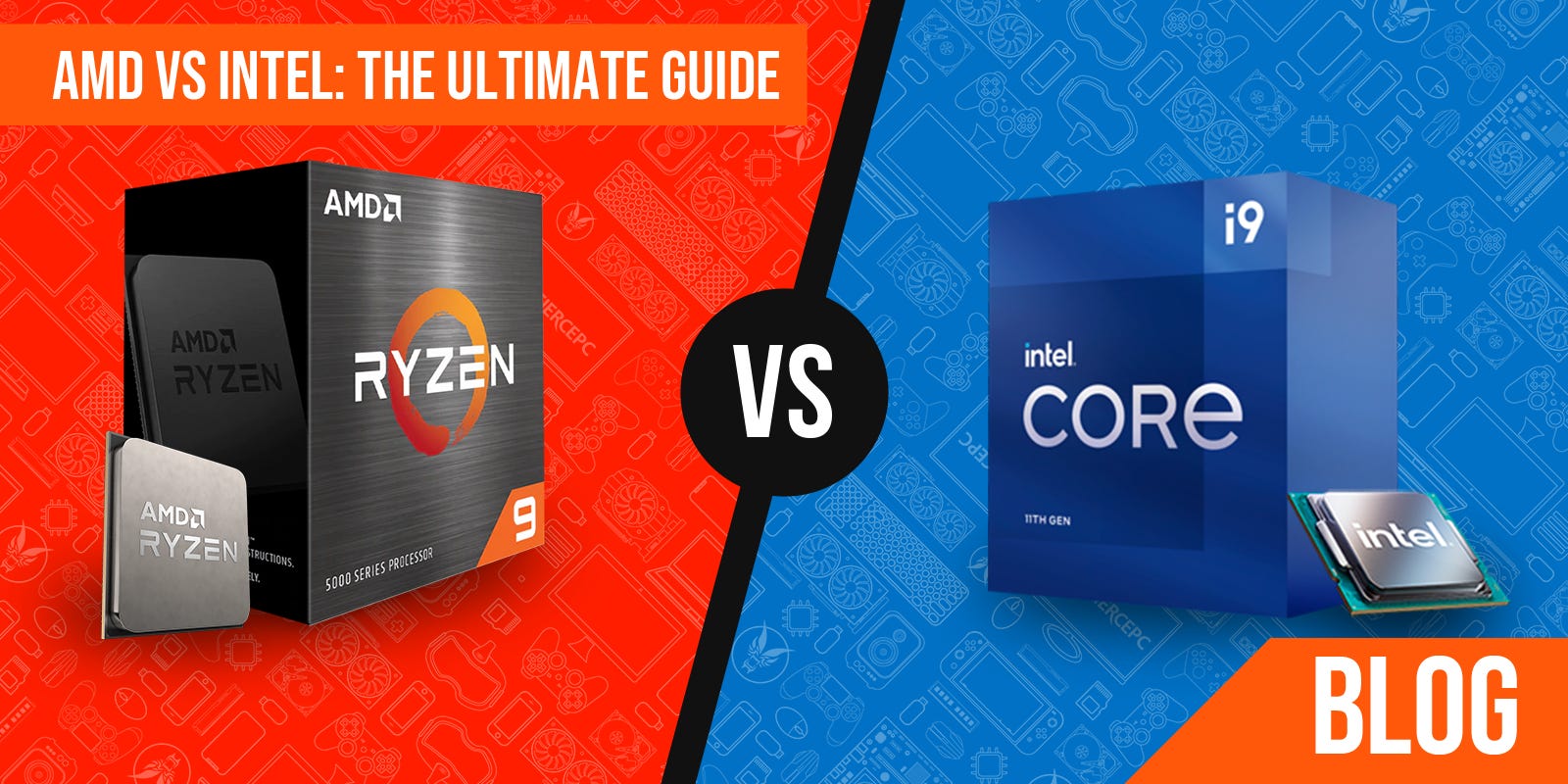
We’ll compare major brands and technologies, such as AMD vs. Intel for CPUs and Nvidia vs. AMD for GPUs, to help you make informed decisions based on your preferences and budget. Additionally, we’ll cover the basics of installing an operating system, comparing Windows and Linux, so you can choose the best platform for your needs.
Whether you’re a beginner eager to dive into the world of PC building or someone looking to understand the process more thoroughly, this guide will equip you with the knowledge and confidence to build a desktop computer that’s truly your own. Let’s get started!
Assembling a Modern Desktop Computer
1. Choosing Components
Case:
Selection: Choose a case based on form factor (ATX, Micro-ATX, Mini-ITX) and features like airflow, cooling options, and aesthetics. Ensure it fits your components and has enough space for cable management and upgrades.
Examples: NZXT H510, Corsair 4000D, Fractal Design Meshify C.
Power Supply (PSU):
Selection: Choose a PSU with sufficient wattage to support all your components, plus a bit extra for future upgrades. Look for an 80 PLUS certification for efficiency (Bronze, Silver, Gold, Platinum, Titanium).
Examples: Corsair RM750x, EVGA SuperNOVA 650 G5.
Motherboard:
Selection: Ensure compatibility with your CPU (socket type) and other components (RAM, GPU). Choose based on features like PCIe slots, RAM slots, and connectivity options (USB, Ethernet, Wi-Fi).
Examples: ASUS ROG Strix B550-E (for AMD), MSI MAG Z590 Tomahawk (for Intel).
CPU (Processor):
AMD vs. Intel:
AMD: Known for strong multi-core performance and value for money. Ryzen CPUs offer good performance in gaming and productivity tasks.
Intel: Historically strong in single-core performance, which is advantageous for certain applications and gaming. Newer Intel CPUs are competitive in multi-core tasks as well.
Examples: AMD Ryzen 7 5800X, Intel Core i7-12700K.
Video Card (GPU):
Nvidia vs. AMD:
Nvidia: Offers high-performance GPUs with advanced features like ray tracing and DLSS (Deep Learning Super Sampling). Known for strong driver support and overall performance.
AMD: Provides competitive performance with technologies like FreeSync and strong value propositions. Newer models are catching up in features like ray tracing.
Examples: Nvidia GeForce RTX 4080, AMD Radeon RX 7900 XTX.
Cooling:
Selection: Choose between air coolers and liquid coolers based on your needs. Air coolers are simpler and often cheaper, while liquid coolers offer better performance and aesthetics.
Examples: Noctua NH-D15 (air), Corsair H100i (liquid).
RAM (Memory):
Selection: Opt for RAM with a speed that matches your motherboard’s specifications. 16GB is a good starting point for most users, with 32GB being ideal for heavy multitasking or professional use.
Examples: Corsair Vengeance LPX 16GB (2 x 8GB), G.SKILL Ripjaws V 32GB (2 x 16GB).
Mass Storage:
Selection: Choose between SSDs (faster, more expensive) and HDDs (slower, cheaper). NVMe SSDs offer the best performance but are more expensive.
Examples: Samsung 970 EVO Plus 1TB (NVMe SSD), Seagate Barracuda 2TB (HDD).
Cable Management:
Tips: Use cable ties or Velcro straps to keep cables organized and out of airflow paths. Route cables through the case’s cable management channels for a cleaner look and improved airflow.
2. Assembling the Computer
Prepare the Case: Install standoffs for the motherboard, mount the PSU, and prepare for cable routing.
Mount the motherboard: After assuring correct standoffs are in place for your motherboard, mount the motherboard in place. Ensure that the correct faceplate is used for the peripheral inputs.
Install the CPU: Place the CPU into the motherboard socket, ensuring it’s correctly aligned. Secure it with the latch.
Apply Thermal Paste: If your CPU cooler doesn’t come with pre-applied thermal paste, apply a small amount to the CPU surface.
Install the Cooler: Mount the CPU cooler on top of the CPU, securing it with screws or clips as per the cooler’s instructions.
Install RAM: Insert RAM modules into the motherboard slots, ensuring they click into place.
Install Storage: Mount the SSD/HDD into the appropriate bays or M.2 slot on the motherboard.
Install the GPU: Slot the GPU into the PCIe slot on the motherboard and secure it with screws to the case.
Connect Cables: Connect power cables from the PSU to the motherboard, GPU, and storage devices. Connect front panel connectors (USB, audio, power switch) according to the motherboard manual.
Cable Management: Use cable ties to organize and secure cables. Ensure all cables are neatly routed and not obstructing airflow.
Check Connections: Verify all connections are secure and components are properly installed.
Power On: Turn on the computer to check for POST (Power-On Self-Test) and ensure all components are functioning correctly.
3. Installing an Operating System
Windows vs. Linux:
Windows:
Pros: Wide software compatibility, user-friendly interface, strong gaming support, extensive driver and hardware support.
Cons: Prone to malware, requires regular updates, licensing cost.
Linux:
Pros: Free and open-source, highly customizable, strong security and privacy features, less prone to malware.
Cons: Steeper learning curve, less software and game compatibility, some hardware issues.
Installation Steps:
Windows: Download the Windows installation media from Microsoft’s website, create a bootable USB drive, and follow the on-screen instructions to install Windows.
Linux: Choose a Linux distribution (e.g., Ubuntu, Fedora), create a bootable USB drive, and follow the on-screen instructions to install Linux.
By carefully selecting and assembling your components, and choosing the right operating system based on your needs, you can build a powerful and efficient desktop computer tailored to your preferences.
🌟 Dear Friends and Readers, 🌟
Are you ready to dive into a world of captivating stories, insightful musings, and thought-provoking content? If so, I desperately need you to follow and subscribe to my Substack, PLEASE! 📬✨
In this bustling digital age, finding quality content that resonates with you can be a challenge. That's why I pour my heart and soul into every post, striving to deliver engaging, valuable, and entertaining reads that you won't find anywhere else.
By subscribing, you'll be joining a community of like-minded individuals who appreciate the art of storytelling, the thrill of knowledge, and the joy of discovery. You'll get exclusive access to my latest work, special updates, and maybe even a few surprises along the way. 📚💡🎉
So, PLEASE, don't miss out! Hit that follow button, subscribe, and embark on this exciting journey with me. Your support means the world to me and keeps this creative engine running. 🙏❤️
Thank you from the bottom of my heart, and I can't wait to share this adventure with you!
Warmest regards,
Brother Ryan
…Just checking who read this far…